
How to Set Up Vietnam eSIM
Set Up Your Vietnam eSIM
Follow the 4-step flow below to install your eSIM before departure and connect after landing in Vietnam.
Open QR eSIM Link
Open the GoVnSIM eSIM link sent to your email after your order is completed.
Install QR eSIM
Scan the QR code or use manual setup details to install the eSIM.
Turn On the Line
Enable the eSIM line and select it as your mobile data line.
Land with Data Ready
After landing in Vietnam, your eSIM automatic with Local Network.
Method 1
Install by QR Code
Use the QR code shown on your GoVnSIM eSIM page. This is the easiest setup method for most phones.
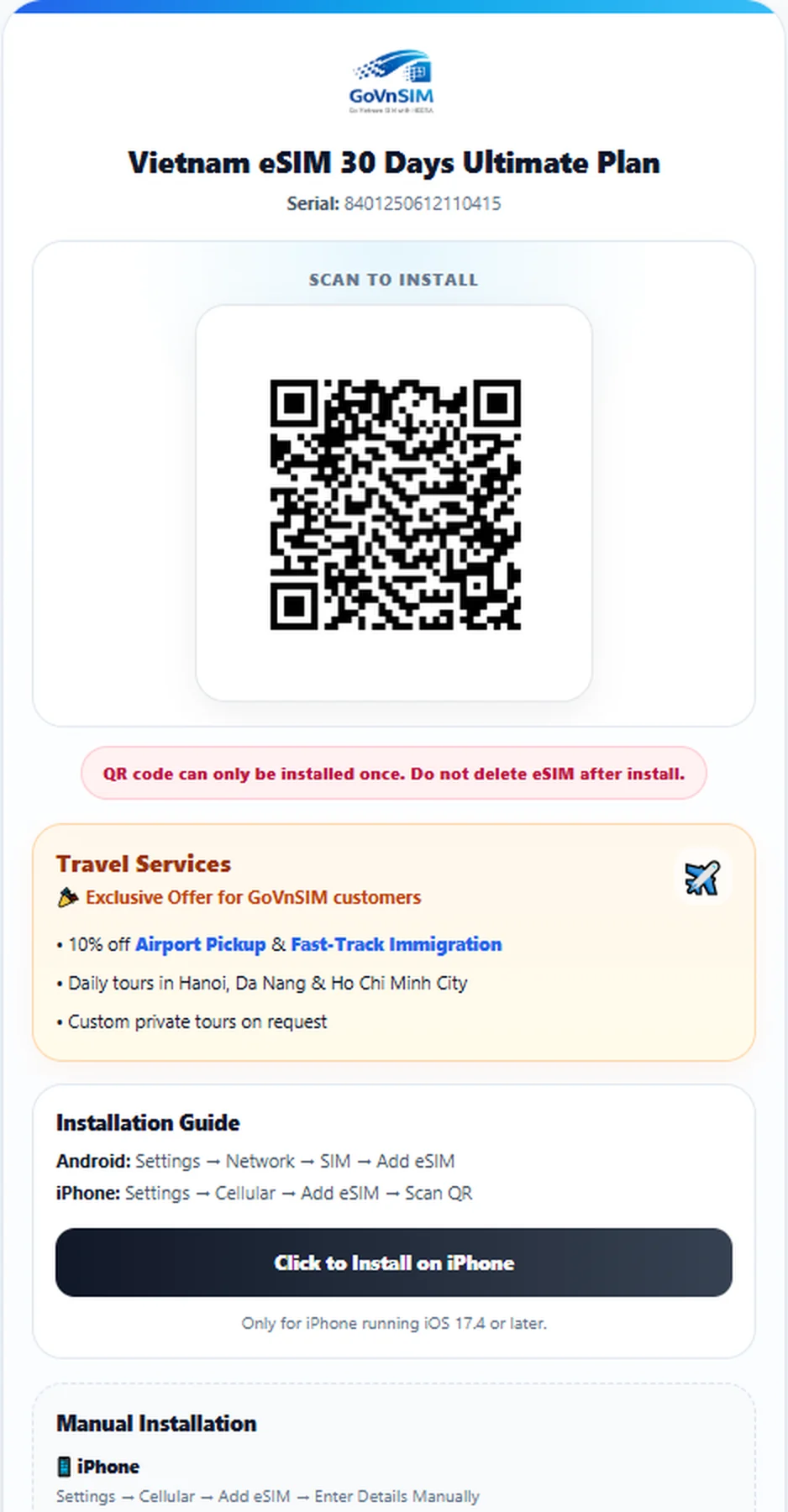 Example only. Your real QR code will appear on your own secure eSIM page.
How to scan your QR code
iPhone
- Open Settings.
- Go to Cellular or Mobile Data.
- Tap Add eSIM.
- Choose Scan QR Code.
- Scan the QR code from your GoVnSIM eSIM page.
Android
- Open Settings.
- Go to Connections, Network, or SIM Manager.
- Tap Add eSIM or Add mobile plan.
- Choose Scan QR Code.
- Scan the QR code from your GoVnSIM eSIM page.
Method 2
Manual Setup
Use manual setup only if QR scanning does not work.
Use the manual details on your eSIM page
iPhone Manual Setup
Settings → Cellular → Add eSIM → Enter Details Manually
- Copy the SM-DP+ Address.
- Copy the Activation Code.
- Enter both fields exactly as shown.
Android Manual Setup
Settings → Network / SIM Manager → Add eSIM → Enter manually
- Copy the Android LPA code.
- Paste the full code exactly as shown.
- Confirm to add the eSIM.
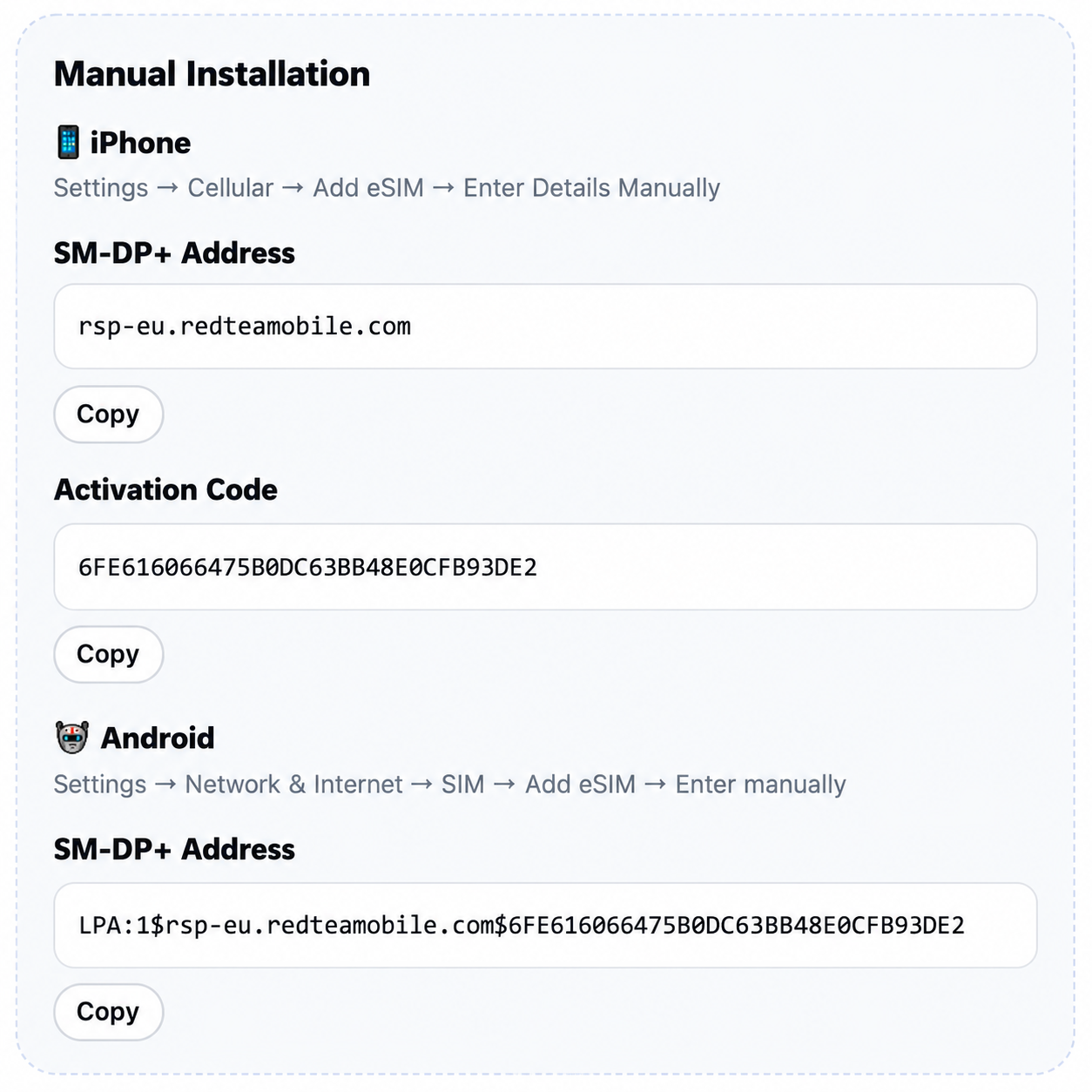 Example only. Your actual manual details will be different.
After Arrival
Connect After Landing in Vietnam
Once you arrive, turn on your eSIM line, select it for mobile data, and enable Data Roaming.
1
Turn on the eSIM line
Enable the GoVnSIM eSIM profile in your SIM settings.
2
Select mobile data
Choose the GoVnSIM eSIM as your mobile data line.
3
Enable Data Roaming
Data Roaming should be on for the eSIM to connect in Vietnam.
4
Restart if needed
If signal is slow to appear, restart your phone and wait a few minutes.
Do Not Delete Your eSIM
Most travel eSIM QR codes can only be installed once. If you delete the eSIM, the same QR code may not work again. Contact GoVnSIM support before removing it.
FAQ
Common eSIM Setup Issues
Quick answers for the issues customers ask about most often.
Why can’t I install the QR code again?
What should I do if QR scan does not work?
Why does my eSIM show no signal after landing?
Should Data Roaming be turned on?
Can I delete and reinstall my eSIM?
How do I check if my phone supports eSIM?
What does “Data Plan Cannot Be Added” mean?
What does “Cellular Plans from This Carrier Cannot Be Added” mean?
Need Help?
Send us your device model and a screenshot of the error message so GoVnSIM support can check faster.