
GoVnSIM eSIM Setup Guide
Set Up Your Vietnam eSIM
Install your eSIM before departure, then activate it for mobile data after you arrive in Vietnam.
Open Your eSIM Link
Open the secure GoVnSIM eSIM link sent to your email after your order is completed.
Install Your eSIM
Scan the QR code or use the manual installation details shown on your eSIM page.
Keep the eSIM Installed
Leave the eSIM on your phone after installation. Do not delete the eSIM profile.
Connect After Arrival
In Vietnam, turn on the eSIM, select it for mobile data, and enable Data Roaming.
Method 1
Install Your eSIM by QR Code
The QR code is the easiest installation method for most eSIM-compatible phones.
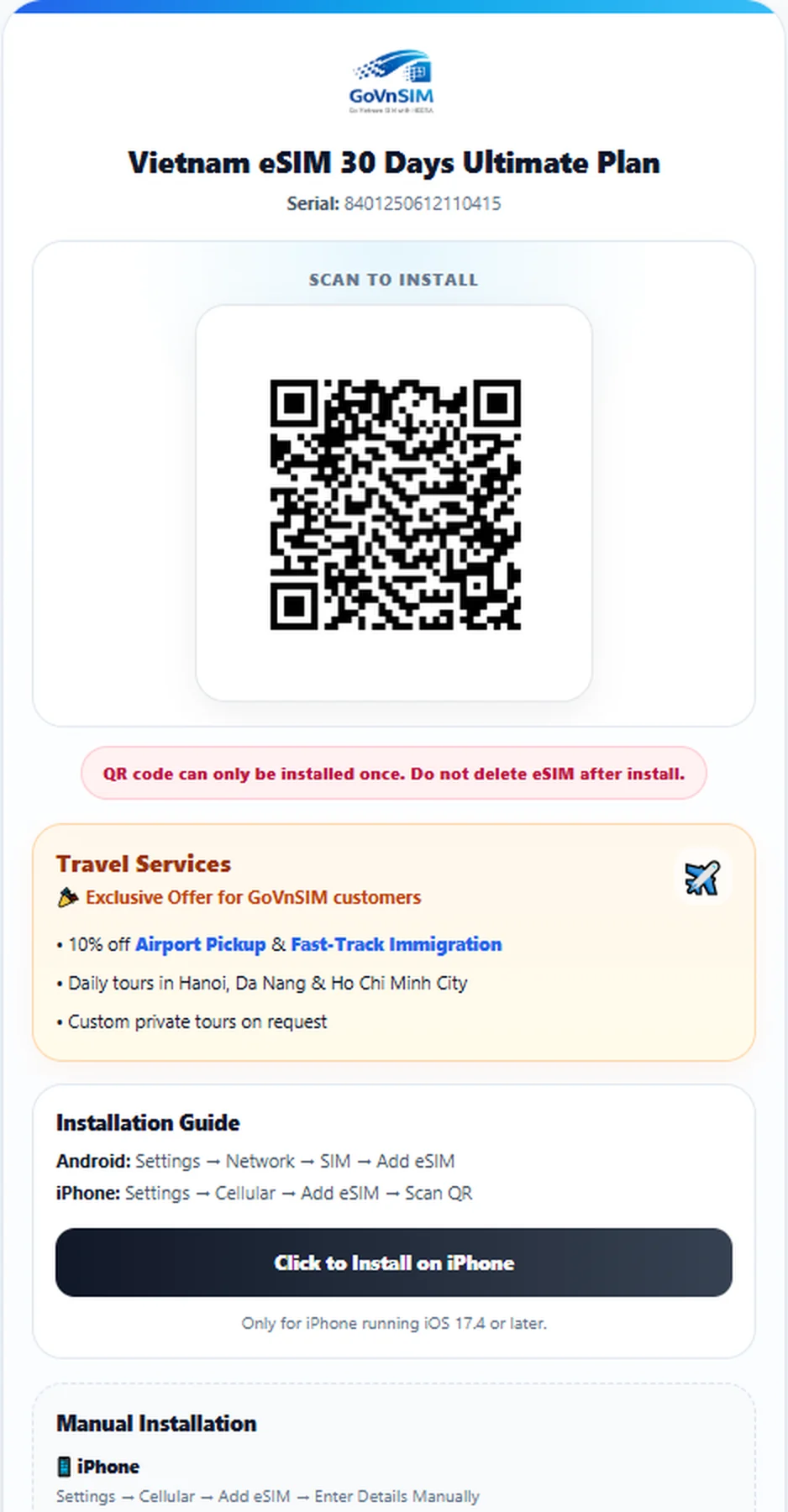
Install eSIM on iPhone
- Open Settings.
- Tap Cellular or Mobile Data.
- Tap Add eSIM.
- Select Use QR Code.
- Scan the QR code from your GoVnSIM eSIM page.
- Follow the on-screen instructions to complete installation.
Install eSIM on Android
- Open Settings.
- Open Connections, Network & Internet, or SIM Manager.
- Tap Add eSIM or Add mobile plan.
- Select the option to scan a QR code.
- Scan the QR code from your GoVnSIM eSIM page.
- Follow the instructions on your device.
Method 2
Install Your eSIM Manually
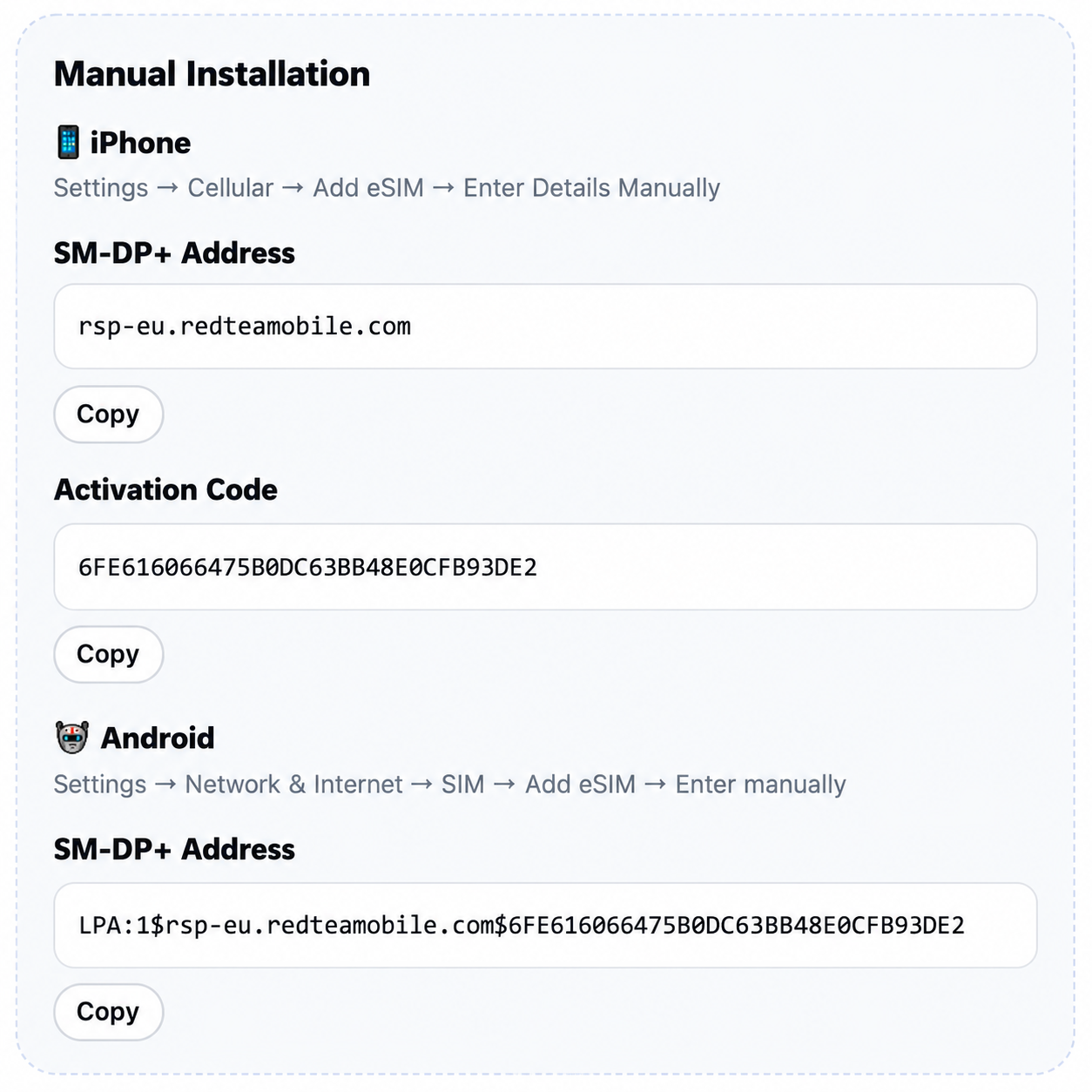
Use manual installation if QR scanning does not work or if the QR code is displayed on the same phone you are setting up.
Manual Setup on iPhone
Settings → Cellular → Add eSIM → Use QR Code → Enter Details Manually
- Open the manual setup details on your GoVnSIM eSIM page.
- Copy the SM-DP+ Address.
- Copy the Activation Code.
- Enter both values exactly as provided.
Manual Setup on Android
Settings → Network / SIM Manager → Add eSIM → Enter manually
- Open the manual setup details on your GoVnSIM eSIM page.
- Copy the Android activation or LPA code.
- Paste the complete code exactly as provided.
- Confirm the installation.
After Arrival
Connect Your eSIM in Vietnam
Once you arrive, enable the eSIM and select it as your mobile data line.
Turn On the eSIM
Enable the GoVnSIM eSIM profile in your SIM settings.
Select Mobile Data
Choose the GoVnSIM eSIM as your mobile data line.
Enable Data Roaming
Turn on Data Roaming for the GoVnSIM eSIM.
Restart if Needed
If the network does not appear, restart your phone and wait a few minutes.
Troubleshooting
Common eSIM Setup Problems
Quick answers to common installation and connection issues.
Why can’t I install the eSIM QR code again?
Most eSIM QR codes can only be installed once. If the eSIM was already installed on a phone, the same QR code may no longer work for another installation.
What should I do if the QR code does not work?
Use the manual installation details shown on your GoVnSIM eSIM page. iPhone normally uses an SM-DP+ Address and Activation Code, while some Android phones use an activation or LPA code.
Why does my eSIM have no signal after landing in Vietnam?
Check that the eSIM is turned on, selected for mobile data, and that Data Roaming is enabled. If the network still does not appear, restart your phone and wait a few minutes.
Should Data Roaming be turned on?
Yes. Data Roaming should be enabled on the GoVnSIM eSIM so it can connect to the supported mobile network in Vietnam.
Can I delete and reinstall my eSIM?
Do not delete the eSIM unless GoVnSIM support advises you to do so. Many eSIM profiles cannot be installed again using the same QR code after deletion.
How do I check whether my phone supports eSIM?
On iPhone, open Settings → General → About and look for an EID. On many Android phones, check the SIM settings or dial *#06# and look for an EID.
What does “Data Plan Cannot Be Added” mean?
This can happen if the eSIM has already been installed, the activation code has already been used, or the phone cannot complete the installation. Contact GoVnSIM support before deleting the eSIM.
What does “Cellular Plans from This Carrier Cannot Be Added” mean?
This can indicate that the phone is carrier-locked or does not support the required eSIM configuration. Check that your device is unlocked and eSIM-compatible.
Still Need Help?
Send GoVnSIM your phone model and a screenshot of the error message so our support team can identify the issue faster.